---
title: Create Awards/Give Awards
description: How to Create an Award
---
[Skip to content](https://support.resnet.ai/migration/create-awards/give-awards#main-content)
English
Show submenu for translations
.jpg?width=6782&height=2762&name=primary_logo%20(1).jpg)
Open main navigation
Close main navigation
- English
Show submenu for translations
- Contact us
Contact us
How can we help you?
- There are no suggestions because the search field is empty.
1. [SUPPORT CENTER](https://support.resnet.ai/migration?hsLang=en)
2. [ResNet For Office](https://support.resnet.ai/migration/resnet-for-office?hsLang=en)
3. [Gamification](https://support.resnet.ai/migration/resnet-for-office?hsLang=en#gamification)
# Create Awards/Give Awards
## How to Create an Award
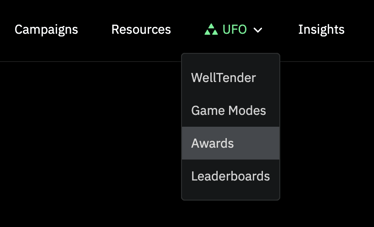
1. On the top nav menu, **click** 'UFO,' then **select** 'Awards.'
1. 
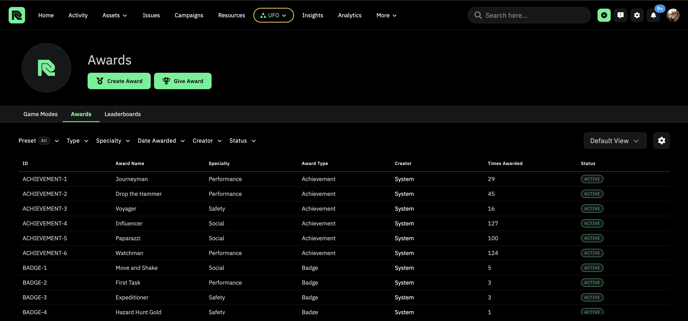
2. This will navigate you to the Awards page.
1. 
3. To create an award **click** on .
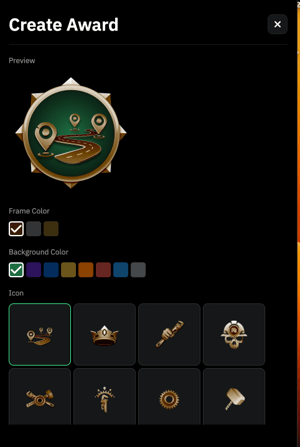
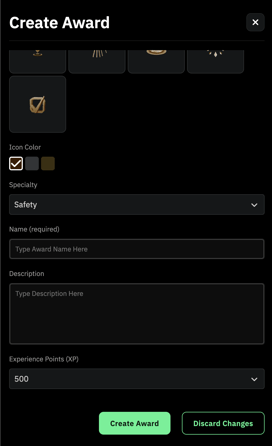
4. A side panel will open on the right hand side of the screen. Use this panel to **customize** the look and feel of your badge by choose the frame color, the icon, and the background color. Then **fill** in all required fields. When finished, **click** 'create' to save your new badge.
1. 
5. This badge will now appear on the Award Table.
---
### Give Award
1. From the Awards Page, **click** on .
2. A side panel will **open** on the right hand side of the screen.
3. You **MUST** select what badge you are awarding. Then **fill** in all required information.
1. 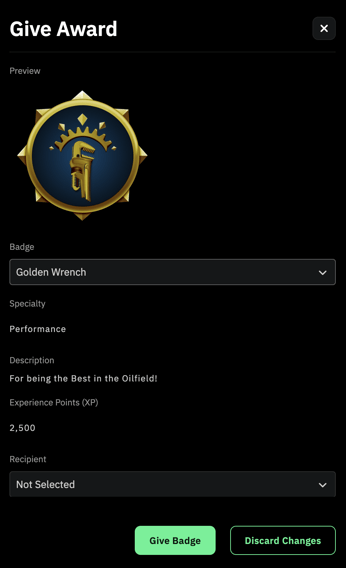
4. When finished, **click** 'Give Badge' to award the badge to the selected user.
- [ResNet For Field](https://support.resnet.ai/migration/resnet-for-field?hsLang=en)
- [ResNet For Office](https://support.resnet.ai/migration/resnet-for-office?hsLang=en#main-content)
- [Admin](https://support.resnet.ai/migration/resnet-for-office?hsLang=en#admin)
- [Home](https://support.resnet.ai/migration/resnet-for-office?hsLang=en#home)
- [Assets](https://support.resnet.ai/migration/resnet-for-office?hsLang=en#assets)
- [Issues](https://support.resnet.ai/migration/resnet-for-office?hsLang=en#issues)
- [Campaigns](https://support.resnet.ai/migration/resnet-for-office?hsLang=en#campaigns)
- [Resources](https://support.resnet.ai/migration/resnet-for-office?hsLang=en#resources)
- [Field Dispatch Console](https://support.resnet.ai/migration/resnet-for-office?hsLang=en#field-dispatch-console)
- [Gamification](https://support.resnet.ai/migration/resnet-for-office?hsLang=en#gamification)
- [Routes](https://support.resnet.ai/migration/resnet-for-office?hsLang=en#routes)
- [User Groups](https://support.resnet.ai/migration/resnet-for-office?hsLang=en#user-groups)
- [Credentials](https://support.resnet.ai/migration/resnet-for-office?hsLang=en#credentials)
- [Forms](https://support.resnet.ai/migration/resnet-for-office?hsLang=en#forms)
- [Admin Panel](https://support.resnet.ai/migration/resnet-for-office?hsLang=en#admin-panel)
- [Filtering](https://support.resnet.ai/migration/resnet-for-office?hsLang=en#filtering)
- [Custom Fields](https://support.resnet.ai/migration/resnet-for-office?hsLang=en#custom-fields)
- [Integrations](https://support.resnet.ai/migration/integrations?hsLang=en)
- [Release Notes](https://support.resnet.ai/migration/release-notes?hsLang=en#main-content)
- [Feature Releases](https://support.resnet.ai/migration/release-notes?hsLang=en#feature-releases)
- [FAQs](https://support.resnet.ai/migration/faqs?hsLang=en)
- [Onboarding](https://support.resnet.ai/migration/onboarding?hsLang=en#main-content)
- [Office](https://support.resnet.ai/migration/onboarding?hsLang=en#office)
- [Field](https://support.resnet.ai/migration/onboarding?hsLang=en#field)
- [Workflow Automation](https://support.resnet.ai/migration/workflow-automation?hsLang=en#main-content)
- [Build Integrations](https://support.resnet.ai/migration/workflow-automation?hsLang=en#build-integrations)
- [Ready-to-use-components](https://support.resnet.ai/migration/workflow-automation?hsLang=en#ready-to-use-components)
- [Example Workflows](https://support.resnet.ai/migration/workflow-automation?hsLang=en#example-workflows)
- [Documentation](https://support.resnet.ai/migration/documentation?hsLang=en)
[.jpg?width=6782&height=2762&name=primary_logo%20(1).jpg)](https://support.resnet.ai/?hsLang=en)
[mailto:email@email.com](mailto:email@email.com)
Copyright © 2026, ResNet AI